SHARING GUIDE · SEPTEMBER 24, 2026
Send the song.
Keep the message with it.
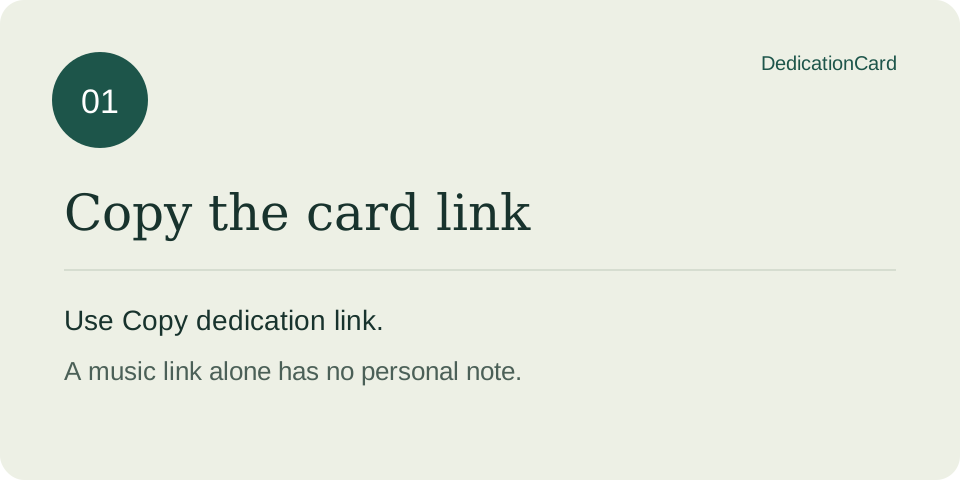
To send a song with a personal message on DedicationCard, create your card, choose Copy dedication link, open that complete link in a fresh browser tab, and check the name and note before sending it. Copying only the Spotify or Apple Music address sends the music, not your card.
Make a song dedication →Choose what you want the other person to receive
A card they can open
Choose Copy dedication link. This keeps the greeting, your message, optional signature and selected music together in a browser page.
A note inside your chat
Choose Copy message + music link. This copies plain text and the music service's address. It is useful if you want the words visible directly in your conversation; it does not open the designed card.
Neither option sends anything automatically. You still paste the result into your own chat or email and choose the recipient there.
1. Create the card, then copy its link
Start at the song dedication tool. Enter the recipient's name, select music and write your note. Add a signature if you want one. Choosing anonymous leaves your signature out of the card; it does not hide your identity in the app you use to send it.
Use Create dedication to open the finished card. Scroll to its sharing buttons and choose Copy dedication link. Look for the copied confirmation. If your browser blocks clipboard access, the page provides selected text for you to copy manually.
2. Check it in a fresh browser tab
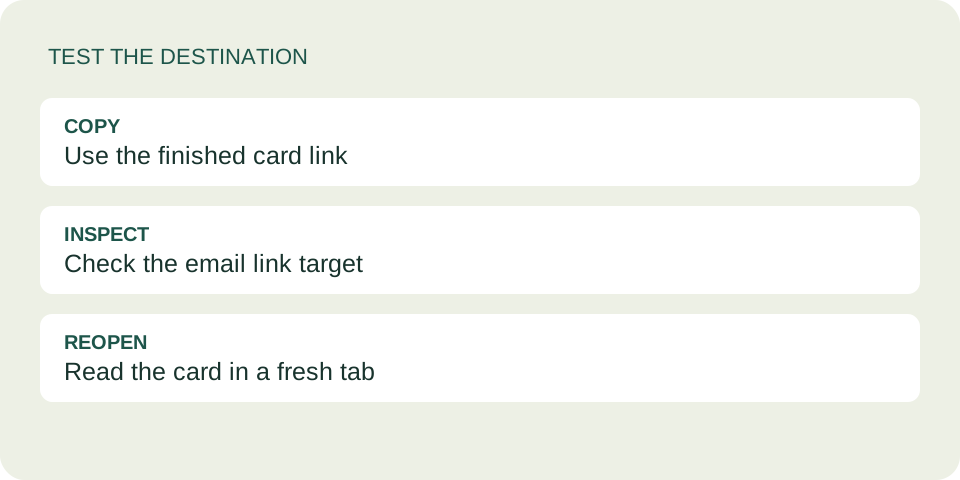
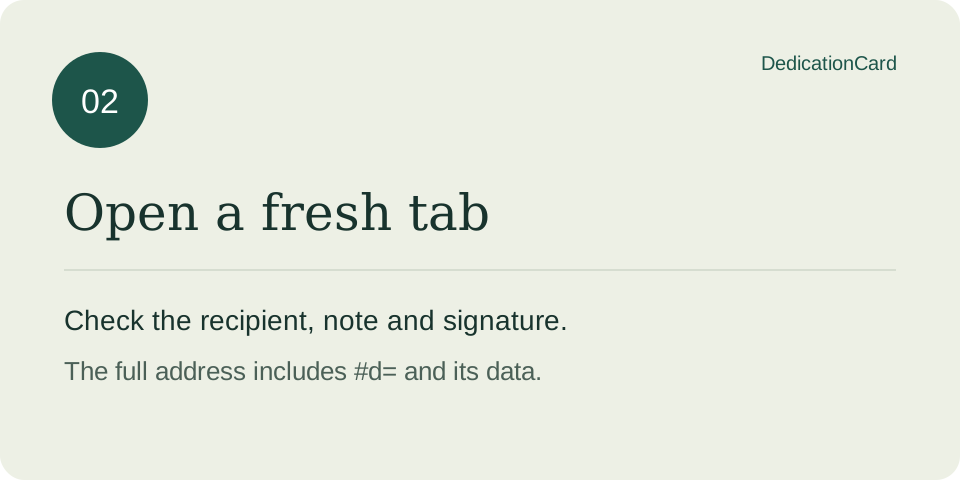
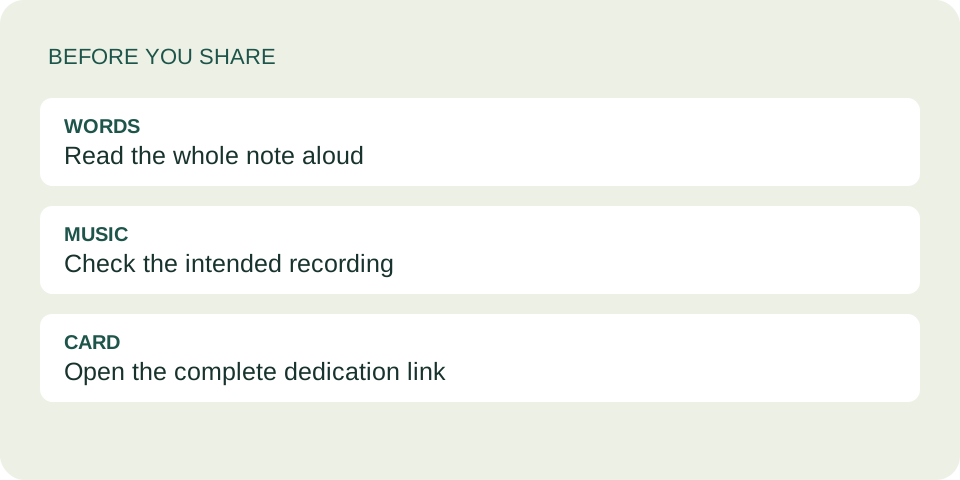
Open a new tab and paste the copied address into its address bar. Press Enter. Check three details: the greeting uses the name you intended, the whole message appears, and the signature matches your choice. Opening a fresh tab tests what is actually in the link, rather than what remains in an editing form.
A DedicationCard address has the shape https://dedicationcard.com/dedication/#d=…. The dots here are only an illustration: a real link has a much longer sequence after #d=. Keep that entire sequence. Do not replace it with dots, remove the fragment, or copy only the short part that looks like a normal page address.
3. Paste it into your conversation
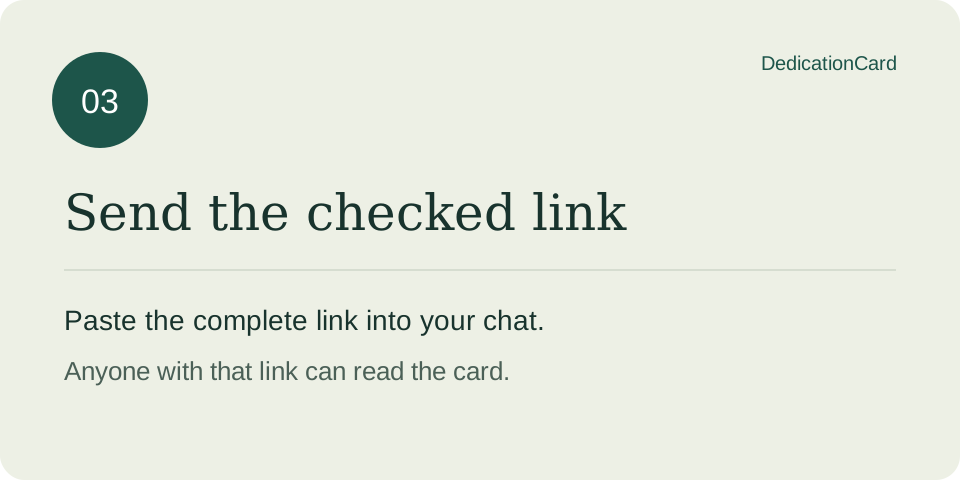
Paste the checked link as a complete, uninterrupted address. If your chat app displays a short label or a preview, the visible label alone does not tell you whether the underlying link survived. Where possible, open the pasted link from your own conversation and confirm the card still appears.
For example, you could add this separately written introduction above the link: “This reminded me of our walk home. There is a little note with it.” This is an illustrative message, not a quotation or a claim about a real recipient. Keep your own introduction specific and comfortable for the person receiving it.
If the result looks wrong
- The music opens, but there is no personal message.
- You may have shared the music service's address. Go back to the finished DedicationCard page and copy its dedication link instead. If you intentionally chose plain text, make sure you copied the message as well as the music address.
- The card says it could not be opened.
- The link may be incomplete or invalid. Recopy it from the original card and test it in a fresh tab. A plain
/dedication/address without the card data cannot reconstruct your note. - The card is correct, but the music does not play.
- This is a separate check. Choose Load music player or Open music. Playback depends on the music service, its catalog, your region and any sign-in requirements. A correctly displayed message does not guarantee that a track can play.
- You notice a typo after copying.
- Make a corrected card and send its new link. This tool does not update a previously shared card from an account dashboard. The old link still contains its old text, so tell your recipient which link to use.
Questions before you send
Is the card link private?
It is not a public message-wall post, but it is also not encrypted or access-controlled. The contents are encoded in the address. Anyone with the full link can open it. Avoid sensitive information and review our privacy explanation.
Will I know whether they read it?
DedicationCard has no delivery or read tracking. Your messaging app may provide its own delivery indicators; those are separate from this site.
Can I send it to a phone?
The card is designed to open in a phone browser. Check the entire address has been sent. The music service may open its own app or ask the recipient to sign in.
Should I keep a copy?
Yes, if you want to use it again. There is no account or saved dedication history. Keep the complete link or your original note somewhere you control.
Watch the one-minute walkthrough
Watch the illustrated sharing guide on YouTube →
Original diagrams with synthetic English narration. Opens YouTube; its privacy policy applies.
Spotify link rejected?
Check the supported Spotify link types and repair steps before creating your card.
Ready for the final check?
Complete link. Correct name. Whole note. Expected signature. Once those are right, share it in your own conversation.
Create your dedication →Read it back before sharing
For a thank-you, try the original message editing exercises.
Sending the card by email?