EMAIL A SONG CARD
Send a dedication by email with the right link behind the words
Create your card, copy its complete dedication link, and paste it into your email. If you hide the long address behind text such as “Open your song card,” check the destination as well as the label. A friendly label alone does not prove that the email opens the right card.
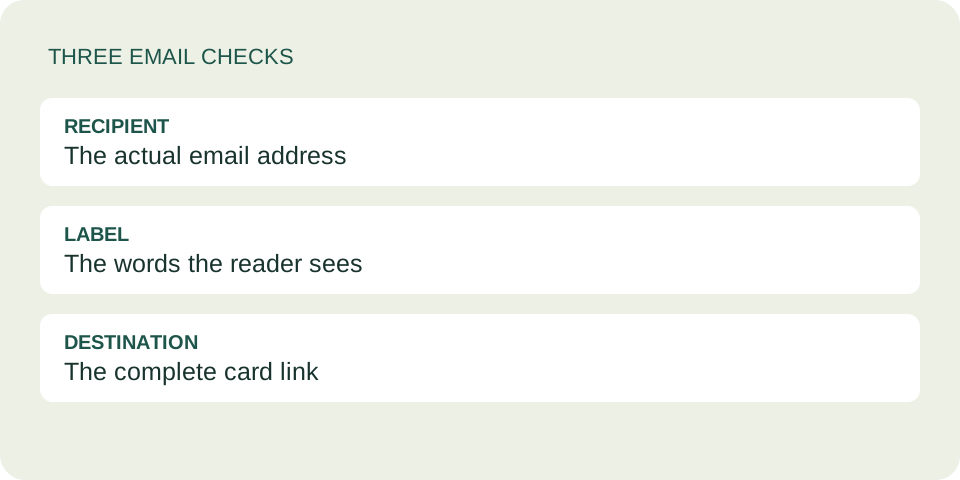
Check three different parts of the email
Recipient
The address in your email app decides who receives the message. The name printed on the card is only a greeting; it does not restrict access.
Visible words
A short introduction tells the reader why you sent a link. “I made a music card for you” is clearer than an unexplained long address. Use your own words and a subject that fits your relationship.
Link destination
The URL behind the words must be the complete card address. A label can say “your card” while pointing to the homepage, a music service, or an older dedication. Test the destination rather than trusting the label.
Two ways to place the link
For a plain-text message, paste the complete address on its own line. Do not manually shorten it or replace its end with dots. A line wrapping on screen is not itself evidence that the address was changed.
For a labelled link in Gmail on a computer, Google's official formatting instructions say to highlight the label, use Insert link or Ctrl+K, paste the URL into the destination field and apply it. Gmail's compose More options menu also contains Plain text mode. These are documented Gmail steps, not a claim that every mail app has the same controls.
Use this draft review exercise
This is a fictional email layout. Replace the greeting and introduction with your own; the bracketed text below is an instruction, not a working URL.
Subject: A song for your afternoon
Hi Casey,
I made a small music card after our conversation. Here is the note and the recording together.
Open your song card
Link destination: [paste the complete dedication link here]
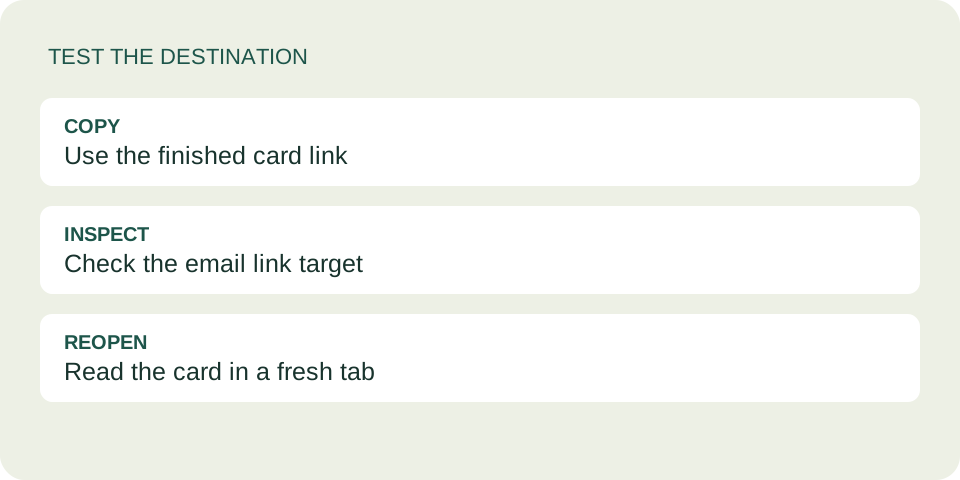
- Copy the link from the finished card, not from a music-service page.
- Insert it in the email and inspect the destination using your mail app's link controls.
- Copy that destination into a fresh browser tab. Check the greeting, message and signature against your intended card.
- If you revise the card, replace the email's destination with the new link. Editing only the visible label does not replace its target.
- Review To, Cc and Bcc before you send from your email app. The card tool does not send the email for you.
Keep the test's limits clear
Opening the destination checks the card encoded in that URL. It does not prove that a recipient received your email, that it avoided a spam folder, or that their music service will play the recording. Those are separate questions.
If a draft shows the right words but the destination opens the wrong card, replace the destination. If the card opens correctly but the recording fails, use the music playback guide. Do not keep changing a correct card link to solve a playback problem.
Anyone with the complete card link can read it. Emailing one person does not make the card access-controlled, and forwarding the email can share the card too. Keep sensitive information out of the card and choose a welcome conversation.
Questions before sending
Can I use only a screenshot?
A screenshot can show your words, but it is not the working card link. Include the complete link if you want the reader to open the card and its music controls.
Should I copy the message and music link instead?
That is useful if you want the words directly in the email. It is a different output from the designed card. Choose deliberately rather than labelling a music-only link as a card.
Does the card send a receipt?
No. It does not report email delivery or whether the recipient read the card. Do not interpret a successful local opening as a receipt.
Can I shorten the displayed words?
Yes. The label can be short while its destination stays complete. Preserve and test the destination; do not trim the URL itself.